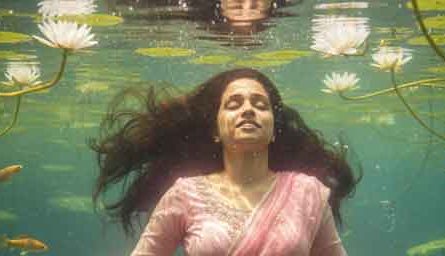
Creating an Onam AI Image Prompt is a simple way to turn an ordinary photo into a beautiful festive image. With ChatGPT or Gemini, you can create traditional Kerala-style photos without using complicated editing software. You can add a Kasavu saree, Pookalam, Nilavilakku, Kerala house and warm festive lighting. Also, you can create a personal Onam photo by uploading your own image as a reference. In this guide, you will learn the complete process from selecting your photo to creating and improving the final Onam AI Image.
What Is an Onam AI Image Prompt?
An Onam AI Image Prompt is a detailed instruction that tells an AI image tool how to create your desired picture. You can describe the person’s outfit, background, lighting, pose, colours and overall photography style in the prompt. For example, you can ask the AI to create a traditional Kerala Onam scene with a Kasavu saree and colorful Pookalam. You can also ask it to keep important features of your uploaded photo natural and unchanged. As a result, a well-written prompt can help you create a more realistic and attractive Onam AI Photo.
Why Use ChatGPT or Gemini for Onam Images?
ChatGPT and Gemini make it easier to experiment with different Onam image ideas using simple text instructions. First, you can upload your photo and explain the style you want in clear language. Next, the AI can help create a festive scene with traditional Kerala elements and suitable lighting. You can also ask for changes if the first result does not look exactly as expected. Therefore, even beginners can try different Onam AI Image Prompt ideas without advanced photo-editing skills.
Step-by-Step Method
Step 1: Select Your Photo
First, choose a clear photo with good lighting and a visible face. Avoid very dark, blurry or low-quality photos because they may affect the final result. A natural photo with the face clearly visible can help ChatGPT or Gemini understand your appearance better. Also, make sure the main subject is not hidden behind other objects or people. Once you select the right photo, you can move to the next step and start creating your Onam AI Image.
Step 2: Open Gemini or ChatGPT
Next, open ChatGPT or Google Gemini on your phone, tablet or computer. Choose the image creation or image editing feature available in your account. You do not need Photoshop or any other complicated editing program for this method. Instead, you can explain your idea with a simple but detailed text prompt. After opening the AI tool, keep your selected photo ready for the next step.
Step 3: Upload the Photo
Now, upload the selected photograph to ChatGPT or Gemini and wait for it to finish loading. Once the image is ready, tell the AI that you want to use it as the main reference for your Onam photo. You can also ask the AI to preserve your natural facial features, skin tone and overall appearance. This instruction is useful when you want a personalized Onam AI Photo instead of a completely new character. After the upload is complete, you are ready to add the main image prompt.
Step 4: Copy the Prompt
Next, copy the ready-to-use Onam AI Image Prompt provided below and paste it into the same AI conversation. The prompt describes the traditional Kerala outfit, festive background, lighting, pose and overall image quality. You can use the prompt exactly as it is, or change a few details according to your preference. For example, you can change the outfit, jewellery, background or lighting to create a different style. Once the prompt is ready, submit it and allow the AI to create your image.
Step 5: Generate the Image
After submitting the prompt, wait while ChatGPT or Gemini processes the photo and creates the Onam-themed image. The final result will depend on the quality of your reference photo and the instructions included in the prompt. Once the image appears, check whether the face, clothing, background and lighting look natural. If the result matches your expectations, you can save it and use it for social media or personal sharing. Otherwise, you can continue to the next step and ask the AI for specific improvements.
Step 6: Check the Result
Before sharing your generated Onam AI Image, carefully check all the important details. Look at the face, eyes, hands, fingers, jewellery, clothing and background to make sure everything looks natural. Also, check the Pookalam, Nilavilakku and Kerala architectural elements for any unusual details. AI-generated images can sometimes contain small mistakes, so a quick review is always useful. If you find something that needs correction, simply tell the AI what you want to change.
Step 7: Improve the Image
If the first result is not perfect, ask ChatGPT or Gemini to correct only the part that needs improvement. For example, you can say, “Keep the same image but make the hands more realistic and improve the saree details.” You can also request better lighting, a different background, natural skin texture or a more realistic pose. This approach helps you improve the image without changing everything that already looks good. Finally, save the best version when you are satisfied with your Onam AI Photo.
Tips for Better Onam AI Photos
For better results, always begin with a clear and good-quality reference photo. Next, describe the clothing, background, lighting and pose clearly instead of using a very short prompt. Also, use authentic Kerala elements such as Kasavu clothing, Pookalam, Nilavilakku and traditional architecture when you want a realistic Onam atmosphere. If the generated image has one small problem, ask the AI to fix only that specific part. Finally, compare a few versions and select the image that looks the most natural and suitable for your purpose.
Onam AI Image Prompt Keywords
The main keyword for this article is Onam AI Image Prompt, and it should appear naturally throughout the content. You can also use related terms such as Onam AI Image Prompt 2026, AI Onam Image Prompt, Gemini Onam Image Prompt and ChatGPT Onam Image Prompt. Other useful search terms include Onam AI Photo, Onam Photo Editing Prompt, Happy Onam AI Image and Onam Greeting Image Prompt. These related keywords help cover different Google searches without repeating the same phrase too often. Keep the wording natural so the article remains useful and easy to read.
Also Read
- Old Photo Restoration | How To Restore Old Photos With ChatGPT in SECONDS!
- Nano Banana Trending Prompts
Frequently Asked Questions
What is an Onam AI Image Prompt?
An Onam AI Image Prompt is a detailed text instruction used to create an Onam-themed image with an AI image tool. It describes the visual style, clothing, background, lighting and other important details.
Can I use this prompt in Gemini?
Yes, you can use this prompt with Gemini’s supported image creation or editing features. Upload your photo first if you want to create a personalized Onam image.
Can I use this prompt in ChatGPT?
Yes, you can use the prompt with ChatGPT’s supported image capabilities. Add your reference photo and then provide the complete prompt to create the desired image.
Can I create an Onam photo using my own picture?
Yes, you can upload a clear personal photo and ask the AI to use it as the main reference. For better results, choose a photo with good lighting and a clearly visible face.
How can I make my AI Onam photo realistic?
Use a clear reference photo and provide specific instructions about clothing, lighting, background and pose. Also, review the generated image and ask the AI to correct any unusual details.
Can I create an Onam image for WhatsApp Status?
Yes, you can ask ChatGPT or Gemini to create a vertical 9:16 image. This format works well for WhatsApp Status and Instagram Stories.
Conclusion
Creating an Onam AI Image Prompt 2026 is a simple way to make beautiful festive photos with ChatGPT or Gemini. First, choose a clear photo and upload it to your preferred AI tool. Next, copy the ready-made prompt and generate your Onam-themed image. Then, check the result and make small improvements if required. With this simple method, you can create and share a beautiful Onam AI Photo with your family and friends.