
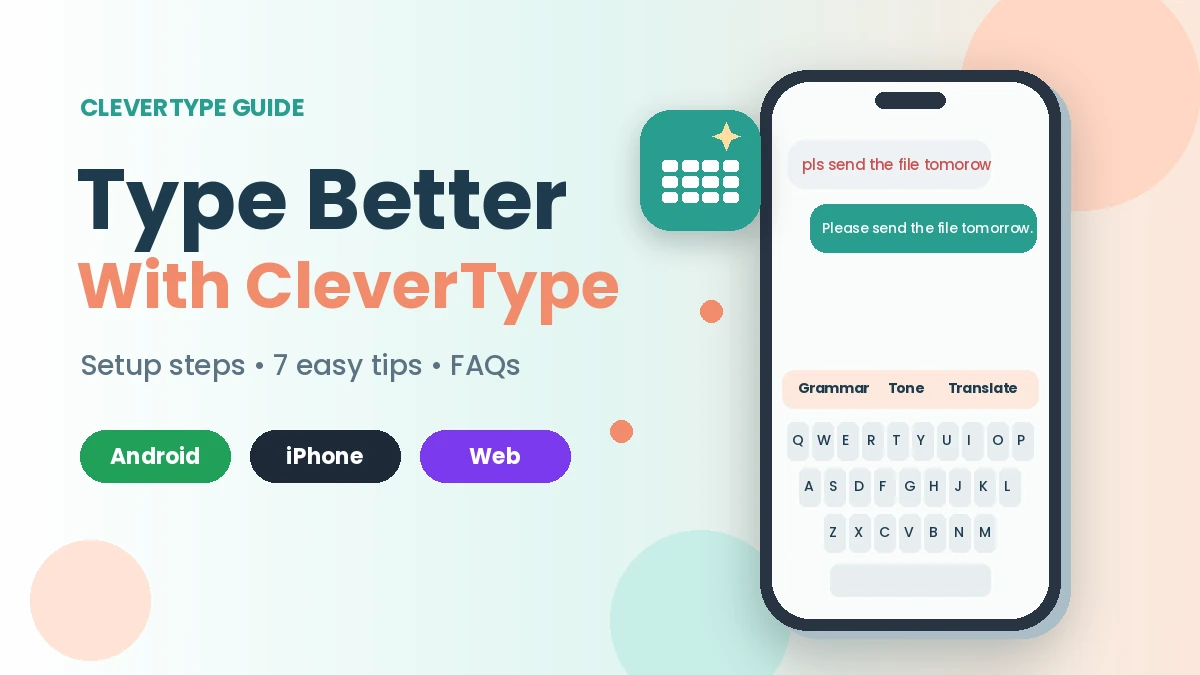
Have you ever sent a message and then spotted a silly typo? This friendly guide shows how to use CleverType keyboard for clean, polite messages.
Basically, CleverType is a free AI keyboard for Android and iPhone. Here, AI means smart software that understands your words.
- CleverType at a Glance
- Who Should Use CleverType Keyboard?
- Best Features in Plain Words
- How to Use CleverType Keyboard: Easy Setup Steps
- Smart Tips on How to Use CleverType Keyboard Better
- Quick Fixes When You Use CleverType Keyboard
- CleverType vs Two Popular Keyboards
- Is It Safe? A Quick Privacy Note
- FAQ About How to Use CleverType Keyboard
- Final Thoughts
CleverType at a Glance
| Detail | Info |
|---|---|
| App name | CleverType AI Keyboard |
| Developer | CleverType (Android), Anjal Saneen (iPhone) |
| Size | About 43 MB (Android), 45.3 MB (iPhone) |
| Version | 8.20.0 (Android), 2.13.0 (iPhone) |
| Works on | Android 7.0+, iOS 15.6+, Chrome browser |
| Price | Free, with an optional paid plan |
| Rating | 4.4 on Google Play, 4.2 on App Store |
| Last updated | September 2026 |
Who Should Use CleverType Keyboard?
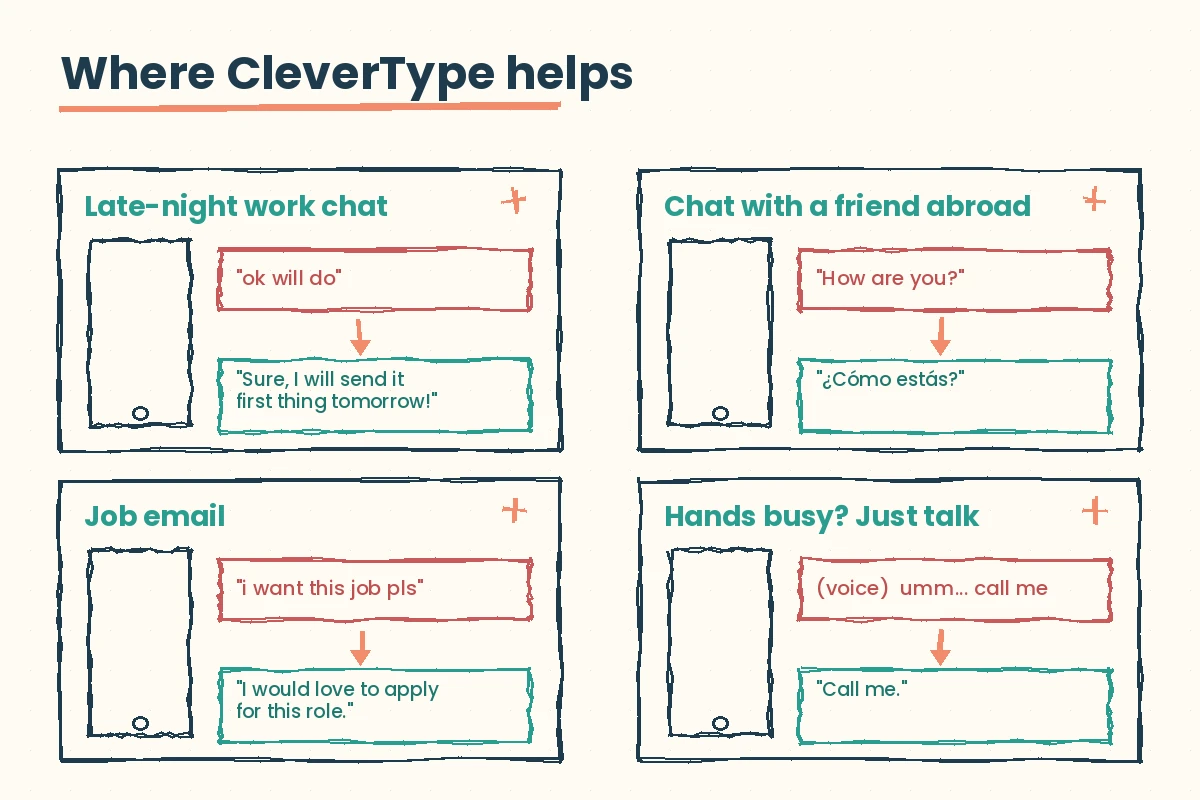
For example, your manager sends a message late at night. Once you learn how to use CleverType keyboard, you can reply politely in seconds.
Or a friend writes to you in Spanish. Then you can answer in her language right there. If you often message new people, this guide on how to start a WhatsApp chat without saving the number is also handy.
Best Features in Plain Words
Fix My Grammar
First, one tap cleans your spelling and grammar. For example, “pls send me the file tomorow” becomes “Please send me the file tomorrow.”
Tone Changer
Basically, tone means the mood of your words. So the same message can sound kind, formal, or funny.
AI Reply
For instance, on Android it reads the last message you got and suggests an answer.
Translate
Besides, you can change your text into more than 40 languages.
Voice Typing
Just talk, and it types for you. Also, it removes words like “umm” and adds full stops.
How to Use CleverType Keyboard: Easy Setup Steps
- Step 1: First, install CleverType from Google Play or the App Store.
- Step 2: Next, open the app and follow the setup screens.
- Step 3: Then, on Android, switch on CleverType and pick it as your default keyboard.
- Step 4: Similarly, on iPhone, open Settings > General > Keyboard > Keyboards > Add New Keyboard. Then choose CleverType and turn on Allow Full Access.
- Step 5: After that, open any chat app, like WhatsApp, and type a message.
- Step 6: Finally, tap the CleverType AI icon above the keys. Choose Grammar, Tone or Translate, then tap send.
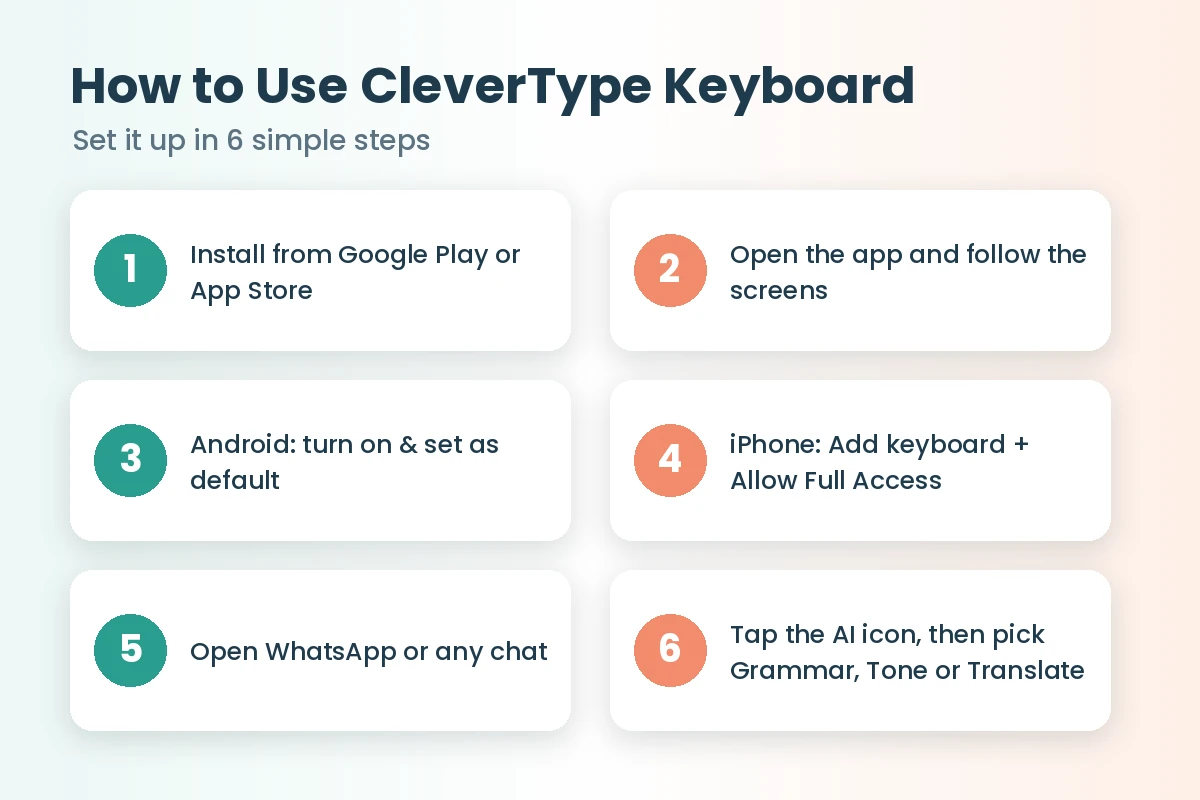
That’s it! So now you know how to use CleverType keyboard in any app on your phone.
Smart Tips on How to Use CleverType Keyboard Better
- Make your own helper. For example, add an instruction like “make it short and friendly.”
- Read before you send. After all, AI can make mistakes.
- Pick “Polite” for work chats. That way, you sound kind.
- Use voice typing while walking. In fact, it is faster than typing.
- Translate replies. In other words, reply in their language.
- Choose a bright theme. As a result, keys are easier to see.
- Save free uses for important messages. After all, the free plan has daily limits.
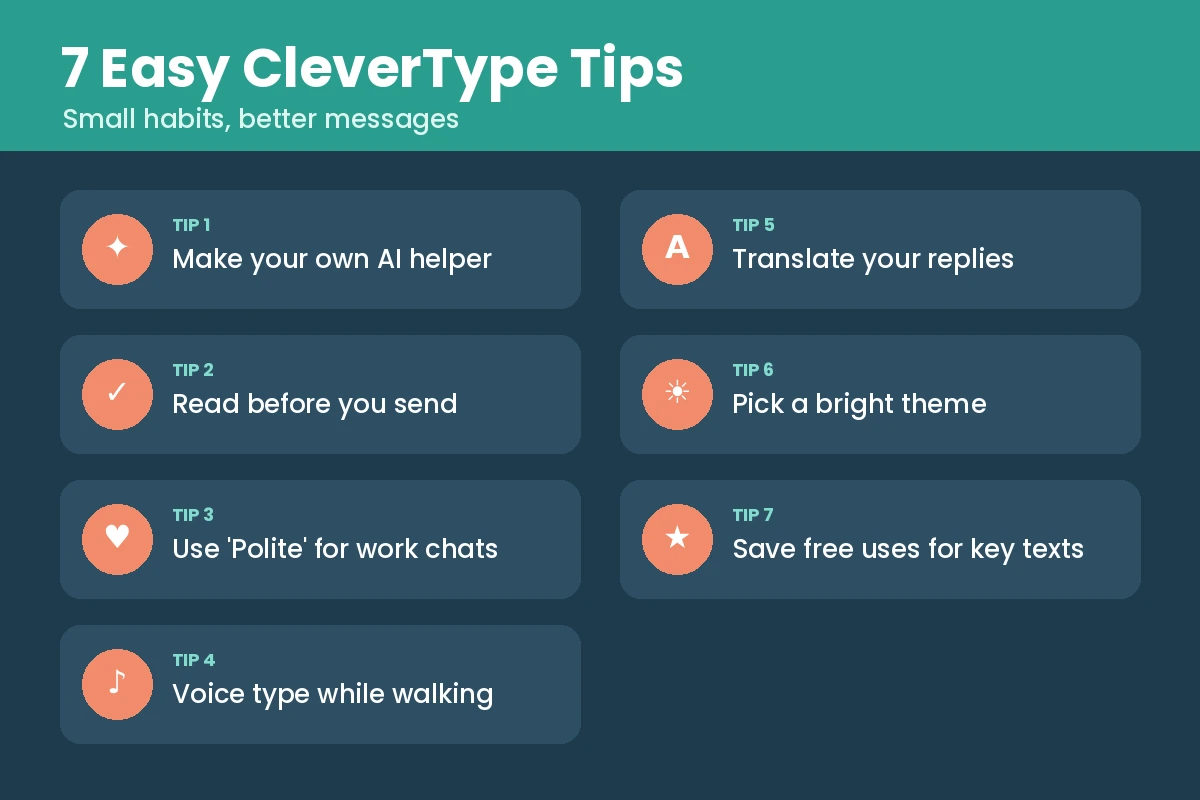
Overall, these tips show how to use CleverType keyboard smartly every day.
Quick Fixes When You Use CleverType Keyboard
Hiccups can happen while you learn how to use CleverType keyboard.
Keyboard not showing? In that case, set CleverType as your default keyboard again.
AI button not working? First, check your internet. On iPhone, turn on Full Access.
Text looks doubled or cut? First, update the app. If it continues, email support@clevertype.co.
YOU MAY ALSO LIKEResume Builder App & CV Maker – Create Job-Ready Resumes in MinutesCleverType vs Two Popular Keyboards
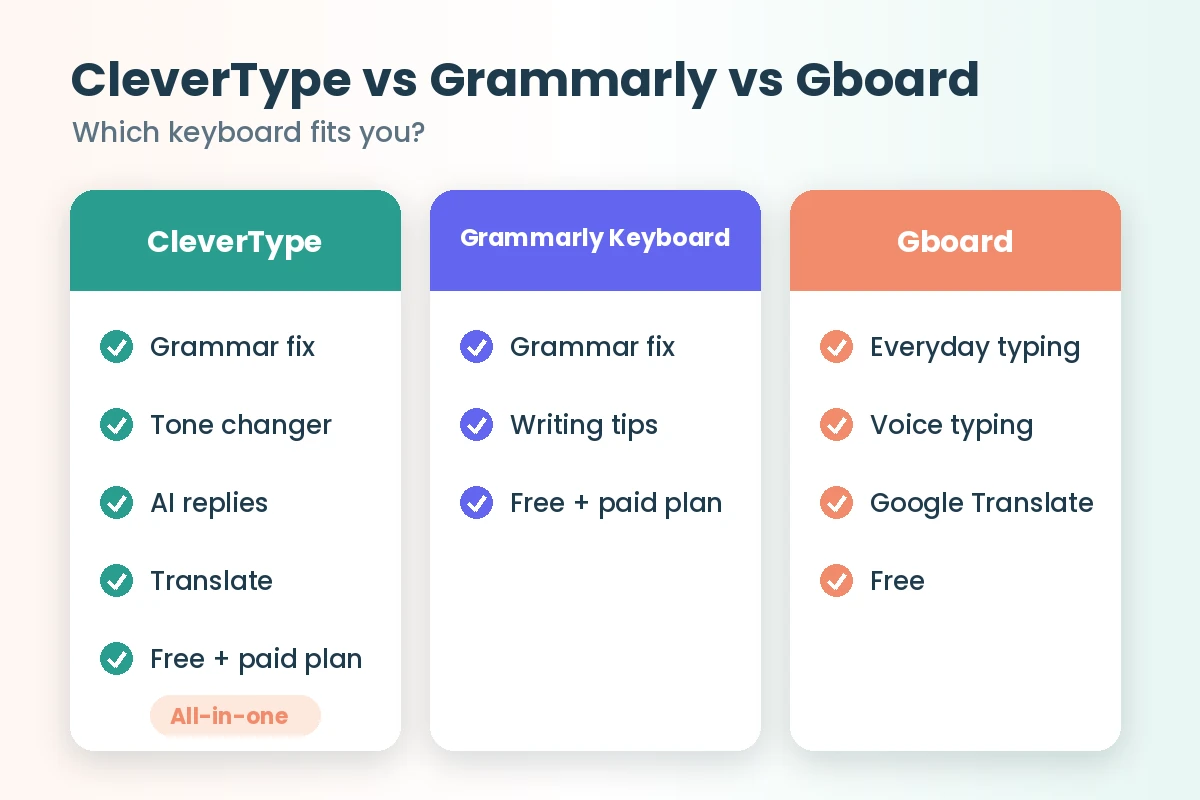
| Keyboard | Best for | Price |
|---|---|---|
| CleverType | Grammar, tone, replies, translation | Free + paid plan |
| Grammarly Keyboard | Grammar and writing suggestions | Free + paid plan |
| Gboard | Typing, voice and Google Translate | Free |
Is It Safe? A Quick Privacy Note
CleverType says it does not track or save what you type. Still, any keyboard sees your words.
Therefore, download only from Google Play, the App Store, or the official CleverType website. Never install “mod” or “premium unlocked” files, and switch to your normal keyboard when typing bank passwords.
FAQ About How to Use CleverType Keyboard
How do I turn on CleverType on my phone?
First, follow the setup steps in the app. Then set it as your default keyboard.
Do I need internet to use it?
Yes, because most AI tools need internet.
Can CleverType change the mood of my message?
Yes. Simply tap Tone, then choose polite, formal, casual or funny.
How do I go back to my old keyboard?
First, open settings. Then pick your old keyboard as the default.
Can I use CleverType on my laptop?
Yes. In fact, it has official browser extensions and a desktop app.
Final Thoughts
So now you know how to use CleverType keyboard to write better texts. First, start with the grammar button. Then try tone and translate. Finally, download it from the button above and send your first perfect message today!